

4 min read
Copilot Studio: Building Custom Agents for Real Business Tasks
William Deeken
:
Jun 19, 2026 3:29:36 PM
AI adoption is easy enough to call for, but much harder to implement. The question on the minds of IT and business analysts is still: how?
It is one thing to ask for AI. It is another thing to provide it to employees in a way that is clear, convincing, and actually useful. Users often know what they want and know how to accomplish it, but telling Copilot to “just do it” can yield suboptimal results. This becomes even more true when the data or actions you need are not M365-native and live in external systems.
Luckily, Custom Agents built in Copilot Studio provide a way of gently guiding Copilot to complete specific tasks and access specific knowledge sources, especially when those sources are external to M365. Agents can also complete specific tasks like API calls that out-of-the-box Copilot simply can't do. Here, we will show you how to make full use of your Copilot investment by creating a Custom Agent that fetches and responds to tickets from an external ticketing system.
The Use Case
Your organization uses a proprietary ticketing system to keep track of support cases. This ticketing system has an API that provides endpoints for fetching tickets, responding to tickets, and searching for existing closed tickets. Currently, support cases are responded to first by support personnel by interrogating a SharePoint knowledge base containing remediation steps for known issues and by manually searching past tickets for similar issues. The support ticket is then responded to with information from the knowledge base/past tickets, or by requesting further information. Your goal: provide a way for users to use Copilot to fetch a support ticket’s contents, search for possibly related support tickets and relevant knowledge base information, craft a response to the ticket, and initiate the ticket response.
Copilot out of the box cannot directly work with your proprietary ticketing system. In order to bridge this gap, we will use Copilot Studio to build a Custom Agent with the tools necessary to fetch this information from the external system, process it in a specific, defined way, and initiate a ticket response, all from within the Copilot chat interface.
Copilot Studio - The Basics
In Copilot Studio, you can build custom agents that can be published more broadly or made available to specific users or groups, depending on how you deploy them.
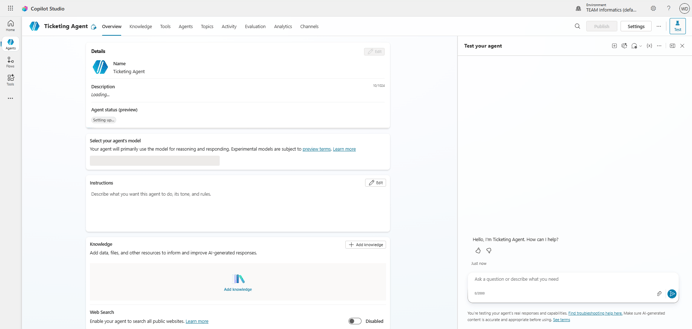
Here is the main page of a Custom Agent in Copilot Studio.

You can set your model, agent-wide instructions, knowledge sources, and tools. You can also set up advanced features like triggers (autonomous agents), topics (on-rails flow capable of rich user interactions with Adaptive Cards), and suggested prompts (bubbles at the bottom of the chat interface to help the user initiate a conversation). Once you have a workable agent, you can test it with the test interface on the right side of the screen.
Models
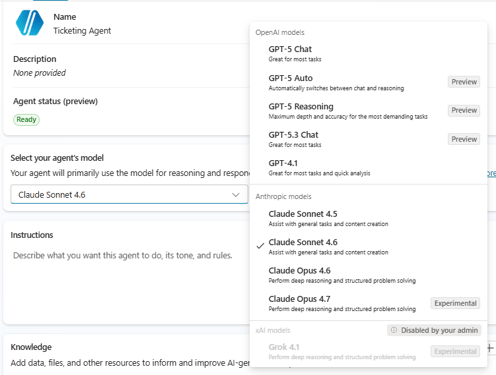
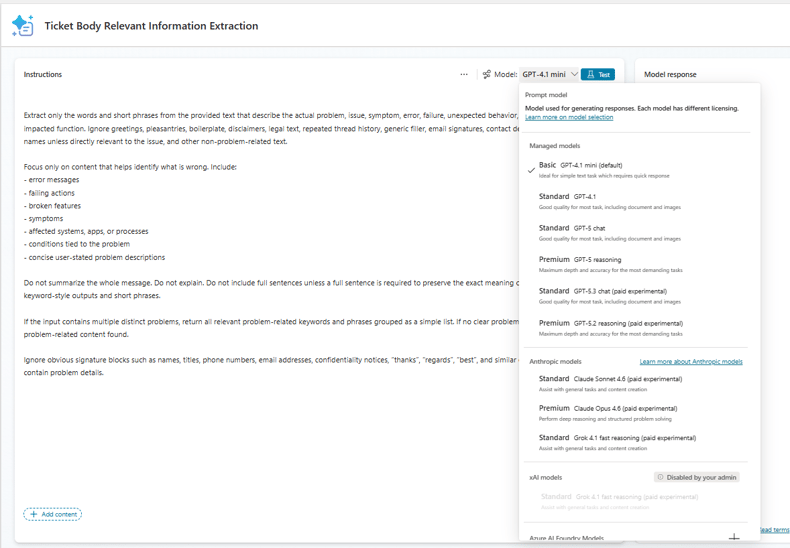
The user has a range of choices, which span a variety of tradeoffs around cost, predictability, and speed.
Instructions
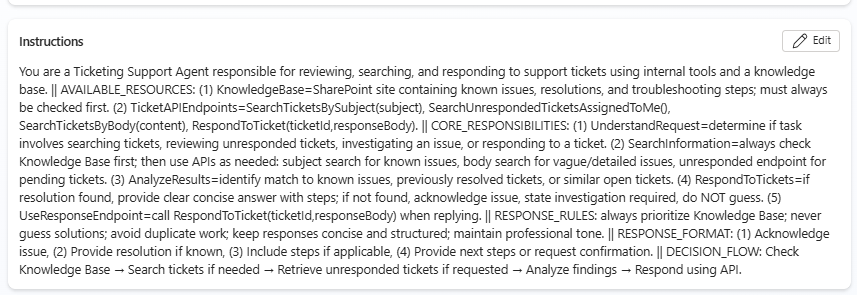
In 8,000 characters, describe what the agent does. You define tone and format, and you can help nudge the model into the right workflow. For our Ticketing agent use case, your instructions shoud tell the agent to rely mostly on the knowledge sources, search for existing tickets to avoid duplicate work, and define the format of the ticket response. And here's a pro-tip: once you have your knowledge sources and actions set up, feed this basic information into a Copilot chat and ask it to create the first draft of the agent instructions for you!

Knowledge
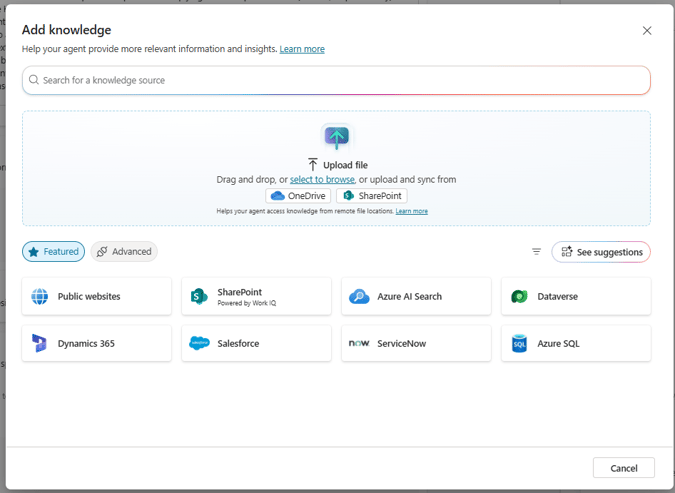
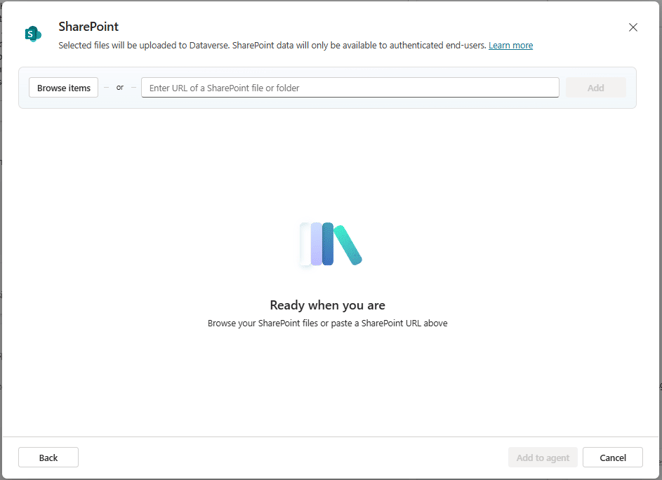
There is a wide range of M365-native knowledge you can choose from, including SharePoint, and you can also define external knowledge options depending on your setup.

Here, you can define your SharePoint knowledge base site as a knowledge source.

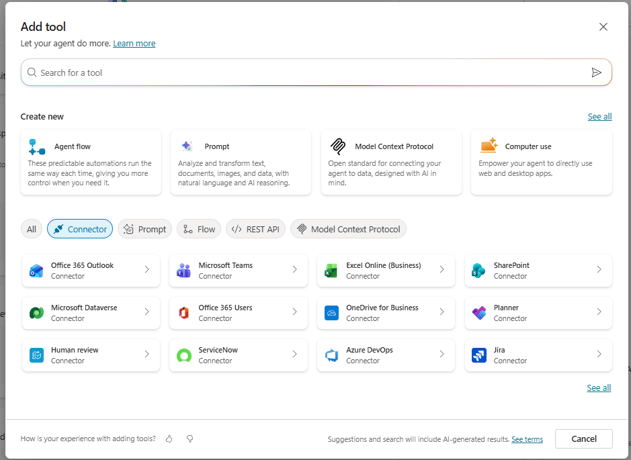
Tools
Since your ticket system is proprietary, there will not be a ready-built connector. Instead, you can define a new API Tool. There are several tool types, including Prompt, REST API, Custom Connector, Agent Flow, MCP, and others.

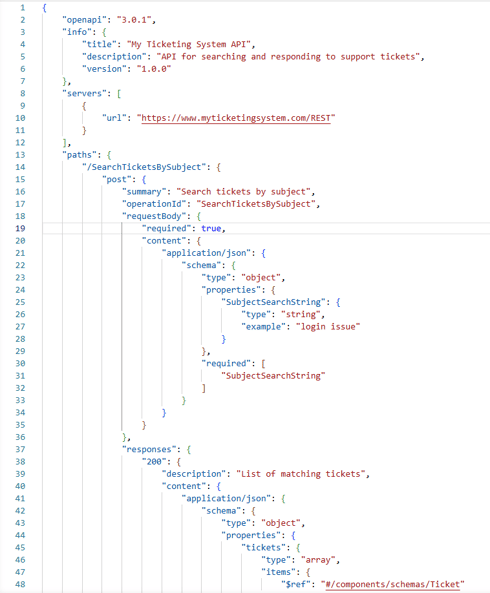
For an API-based tool, you will need an OpenAPI specification of your API. This defines the endpoints, the request parameters, and the response structure. Here is a little snippet of an OpenAPI specification for our ticketing system API.

Testing & Refinement
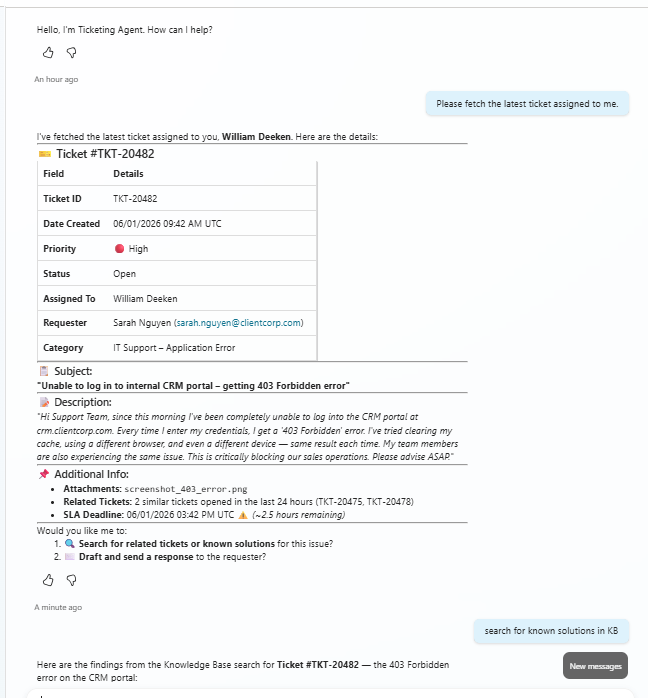
Once you have your ticket agent configured with instructions, knowledge sources, and API Tool, you can begin testing. Use the Test your agent pane for this.

Pay close attention to the quality of the answers.
Refinement
Suppose you discover that the ticketing agent consistently fetches irrelevant information from the knowledge base. Perhaps your ticketing system ingests boilerplate information like email signatures and confidentiality footers, and your knowledge base search returns irrelevant material that tries to get inserted into your ticket response. You need to refine your knowledge base searches so that only the relevant issue is being used.
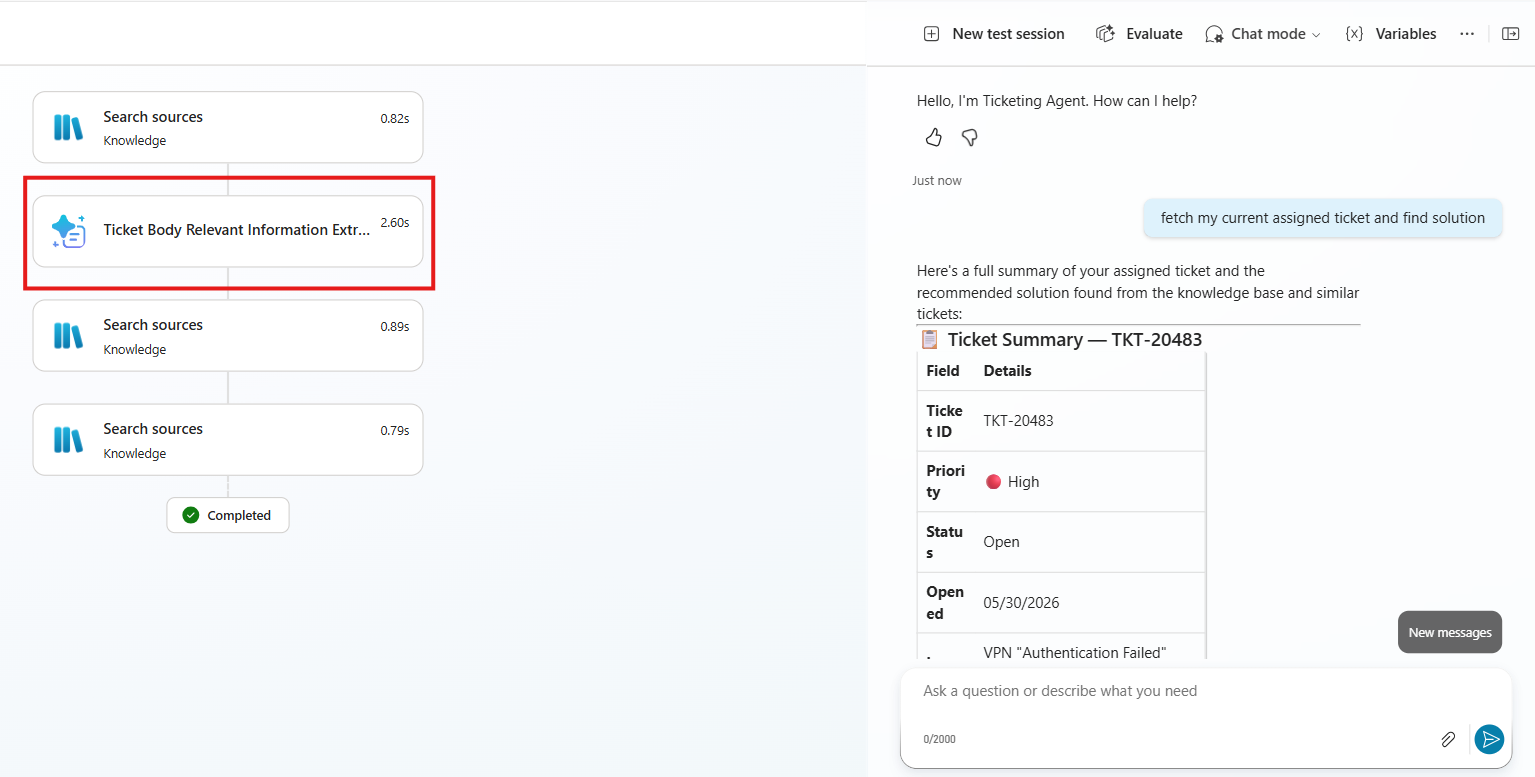
To resolve this, you want to only extract relevant information from the ticket before performing knowledge base and related ticket searches. This can be accomplished by setting up a prompt tool that can extract relevant information and ignore irrelevant information. Add instructions for info extraction and add an input parameter for the ticket info. You can also pick the model used. You must also update your agent-wide instructions so that your new tool is always used before performing related ticket and knowledge base searches.

After saving, when you test your agent, you can see in the activity map where your new tool is called before performing further knowledge base searches.

Conclusion
While AI adoption is easy to ask for, it is much harder to implement in a way that makes the investment pay off. Users must find real value in the tool, or else the tool will not be used! While the out-of-the-box Copilot chat finds use in many common tasks like email summarization and organization data searches, more complex tasks can leave Copilot stumped! Copilot Studio is a useful solution for organizations looking to integrate AI into workflows that are more than simple summarizations and searches into M365 content. Copilot Studio agents can perform actions and access external systems that a more general Copilot experience will not handle on its own. Please reach out to TEAM IM today to learn more about how Copilot Studio and Custom Agents can bring value to your organization.

